Microsoft OneDrive is a cloud storage service for file syncing and file sharing across computers, phones and tablets. It keeps documents, photos and other files available wherever you need them. It can also reduce the risk of losing important data if a device is damaged, lost or replaced.
For UK users, OneDrive supports a wide range of needs. Personal users can back up photographs and household documents, while students can organise coursework. Families can share files without relying on USB drives. It also connects with Office tools, making it useful for work and small-business files. Storage limits, sharing controls and account permissions still need careful attention.
The service includes a free storage tier, while paid plans provide more space and may add access to Office applications. The better-value option depends on how many files need storing, how often devices are used and whether the extra software is useful. This guide explains how to set up OneDrive, store and share files, protect data, use it across devices and compare the available storage plans and Microsoft 365 subscriptions.
Key Takeaways
- OneDrive stores and syncs files across computers, phones and tablets, keeping documents and photos available after device loss or damage.
- Microsoft 365 plans offer more storage and may include Office applications, while a free OneDrive account suits lighter personal use.
- OneDrive sharing works best when you check permissions, expiry dates and editing rights before sending a file link.
- OneDrive supports households, students and small businesses, but sensitive files still need strong passwords and secure account settings.
- Comparing storage needs, device numbers and overall OneDrive plan value helps prevent paying for unused space or software.
What Is OneDrive and How Does It Work?
OneDrive is Microsoft’s cloud storage and file-syncing service. Formerly known as SkyDrive, it stores files on Microsoft’s remote servers. Server-side encryption helps protect documents, photographs and folders as they remain available across Windows PCs, phones, tablets and web browsers.
OneDrive is linked to a Microsoft account. Anyone with an Outlook.com, Hotmail or other Microsoft account can use it. OneDrive comes pre-installed in Windows 10 and newer versions of Windows, making access straightforward.
A Microsoft 365 subscription adds more storage and access to Office apps, depending on the plan. This connection makes OneDrive particularly useful for people who already work with Word or Excel.

AI-generated image showing OneDrive files accessed across several devices.
Cloud storage, syncing and backup explained
These three terms are related, but they don’t mean the same thing:
- Cloud storage keeps a copy of a file on Microsoft’s servers instead of relying only on a device’s internal drive.
- Syncing keeps selected folders aligned across connected devices. Changes made on one device can appear on others.
- Backup creates a protected copy that can help restore data after loss or damage.
OneDrive mainly provides cloud storage and syncing. Synchronization means changes can spread across devices, including deletions or overwrites. OneDrive’s recycle bin and file version history can help recover some items, but syncing alone isn’t a complete answer for every form of data loss. Important files may still need a separate backup strategy.
OneDrive can make files easier to reach, but a synchronised copy isn’t automatically an independent backup.
A simple example of OneDrive in use
A student might save a coursework document inside the OneDrive folder on a Windows laptop. The file uploads to the cloud, then appears in the OneDrive app on a phone and through a web browser on another computer.
When the student edits the document, the updated version can sync across those devices. Microsoft 365 users may also open and edit compatible files in Word online or the desktop application, provided the account has the required access.
An internet connection is needed to upload files, synchronise changes and access online features. However, files marked for offline use can remain available without a connection. Any edits made offline will sync once the device reconnects, although conflicting changes can occasionally require manual review.
How to Set Up OneDrive and Sync Files Safely
Setting up OneDrive correctly prevents accidental deletions and unnecessary storage use. Sign in with a Microsoft account linked to an Outlook.com address. Download the desktop app on Windows 10 or macOS, then open the OneDrive app on Android or iPhone. Browser access is also available through Microsoft’s OneDrive website.

Choose which folders should sync instead of copying an entire drive without checking its contents. Files On-Demand keeps most files in the cloud, helping to save hard drive space. On a PC, use Windows Explorer to browse synced folders. The mobile app shows cloud files without storing every item locally, although selected files can be downloaded for offline use.
A cloud icon usually means an item is online-only. A green tick indicates that it is stored on the device, while circular arrows show that OneDrive is uploading or downloading changes. Files should only be moved, renamed or deleted after synchronization has finished.
How to Free Up Device Storage Without Deleting Cloud Files
Removing a local copy is different from deleting a file from OneDrive. An online-only file remains in the cloud and can be downloaded again, whereas deleting the file removes it from the synced folder and may remove it from other connected devices.
On a Windows PC or Mac, right-click a downloaded file or folder and choose the option to free up space, such as Free up space or Remove download, depending on the operating system. Avoid choosing Delete unless the file should disappear from OneDrive. Files marked for offline use take up local storage, so this setting should be reserved for documents needed without internet access.
Small SSDs benefit from keeping large photo libraries and video folders online-only. On a phone, downloaded files can be removed through the OneDrive app without deleting the cloud copy. Changing folder-selection or sync settings without checking their effect can make files disappear from a device, even though they remain online.
What to Do When OneDrive Stops Syncing
First check the OneDrive status icon and any message beside the affected file. Weak Wi-Fi or mobile data, a full OneDrive quota, paused syncing, sign-in problems and unsupported file names are common causes.
Restart the app and reconnect to a reliable network before unlinking the account. A file may need to be renamed or moved if its name contains prohibited characters, ends with a full stop, uses an excessively long path or conflicts with another edit. Interrupted network transfers can delay synchronization. Duplicate copies can appear when two devices change the same file before syncing completes, so check the correct version manually.
If storage is full, remove unnecessary cloud files or upgrade the available capacity. Account unlinking should be a later step, because it can create confusion about which local files have uploaded successfully.
How to Organise, Share and Restore Files in OneDrive
A clear OneDrive structure makes files easier to find, share and recover. The most reliable approach is simple: use a small number of broad folders, consistent names and sensible dates, rather than creating a complicated hierarchy that nobody maintains.
A Simple Folder System for Home, Study and Work
A practical top-level structure could include:
- Personal, for identity documents, CVs and personal projects.
- Household, for utility bills, warranties, insurance documents and home records.
- University, with folders for each course, module or assignment.
- Work, organised by client, department or project.
- Archive, for older material that still needs to be retained.
Year folders can sit inside these categories, such as Household/2025 or Work/Project Name/2025. File names should follow the same pattern, for example 2025-03-18_BankStatement_March.pdf or Module Name_Essay Draft 02.docx. Dates written as year-month-day sort in chronological order, which makes large folders easier to scan.

AI-generated image showing an organised OneDrive filing system.
Use Windows Explorer to manage the same folder structure locally, whilst OneDrive search can find file names, document content and common file types. Synchronization carries edits across shared devices, while sorting helps locate recently changed or shared items. Consistent naming improves both methods. However, too many nested folders create friction, so the structure should remain understandable to anyone who may need access.
How OneDrive Helps Protect Important Documents
OneDrive can reduce the impact of accidental changes, lost devices and hardware failure. A cloud copy remains available when a laptop stops working. Ransomware protection and the Personal Vault can add further safeguards for essential personal and financial records.
When collaborating through Microsoft 365, version history can restore an earlier version of compatible Word and Excel documents. This is useful when several people edit the same file or an important change is overwritten.
The recycle bin can recover deleted files for a limited period, subject to Microsoft’s account and storage rules. To restore an item, open OneDrive online, select the recycle bin, choose the file and use the restore option. Earlier versions are available through the file’s version-history menu when OneDrive has recorded them.
Sharing should be limited to the people who need access. A file or folder can usually be shared with view-only or edit permission, and some accounts offer link expiry controls. Edit access should be reserved for genuine collaboration because recipients can alter, move or delete shared content. Public links are risky for private documents, as anyone who obtains the link may be able to open the material.
A cloud copy protects against device failure, but it doesn’t create a fully independent backup.
Ransomware, mistaken deletion, synchronised damage and loss of the Microsoft account can still affect cloud files. Irreplaceable photographs, legal records and financial documents should have another copy on a separate external drive or secure storage service. OneDrive is a useful layer of protection, not the whole backup plan.
The Main Benefits of OneDrive for Different Types of User
OneDrive connects everyday storage with familiar Microsoft tools. Its value varies by user, but the central benefit stays the same: files remain accessible across devices without USB drives or large email attachments. Outlook.com can also help coordinate emails and shared documents in one place. This convenience has limits, including storage caps, internet dependence and the need for careful account security.
OneDrive for Families and Shared Household Files
Households can use OneDrive to store scanned records, travel documents, schoolwork, household budgets and selected photographs. A folder for insurance documents, for example, can be shared with a partner without exposing unrelated personal files.
Sharing a folder isn’t the same as giving someone access to an entire Microsoft account. Folder sharing grants permissions to specific content, while account access could expose email, private files and other services. On shared family devices, each person should use their own account and check which folders are synchronised locally.

AI-generated image showing household documents and photographs organised across devices.
OneDrive for Students, Freelancers and Remote Workers
Students can use OneDrive to organise coursework by module, access documents between university and home devices, and restore earlier versions after unwanted changes. Freelancers and remote workers gain similar flexibility when project folders, invoices and shared documents must remain available away from the main office.
Live editing in Word supports collaboration, while Excel helps users track data, budgets and project progress. Access depends on the account and subscription, so university and employer rules should take priority. This is particularly important for client details, student records, financial information and personal data.
Personal and business storage should remain separate to prevent confusion or accidental data overwrites. Mixing accounts can also affect ownership, permissions and access when employment or enrolment ends. Shared links are often more practical than large attachments, but permissions should be checked before distribution.
OneDrive for Photos, Videos and Creative Projects
Photographs, raw video footage and design files can consume storage quickly. Mobile uploads help protect new images after a phone is lost, whilst OneDrive folders organised by event, client or project make large libraries easier to search.
However, syncing isn’t the same as professional archiving. A deleted file can disappear across connected devices, and account problems may affect access. Large collections may require a paid storage tier, plus a separate copy on an external drive or another secure service. That second copy matters most for irreplaceable family photographs and completed creative work.
OneDrive Storage Plans, Costs and Buying a Subscription Online
OneDrive storage is linked to a Microsoft account, but the allowance depends on whether the account uses the basic free storage tier or a paid plan. Free storage suits light document use, while premium Microsoft 365 options can add capacity, desktop Office apps and benefits for more than one person.
Before paying, account holders should compare the current storage plans rather than relying on a headline figure. Check capacity, included applications, people covered, recurring billing, cancellation terms and compatibility with an existing account. Subscription packages can be purchased through Microsoft’s official account and billing pages. At checkout, review the final price, renewal arrangement and account details over a secure connection. Save the confirmation email or receipt for future reference.
How to Choose the Right Amount of Cloud Storage
The most reliable way to choose a OneDrive plan is to measure current usage first. The account dashboard shows occupied space, while device settings identify folders containing the largest files.
A simple review should include:
- Documents, PDFs and spreadsheets usually require modest space, even for households with many years of records.
- Photos need more room, particularly when phones use automatic uploads for every camera image.
- Videos can consume storage rapidly because high-resolution recordings are much larger than ordinary photographs.
- Each computer, tablet or phone may add synced folders, offline files and duplicate media to the overall requirement.
A sensible allowance should cover current usage plus expected growth. Someone storing mainly documents may need only a small increase, while a family with camera uploads may require substantially more. Creators should also check the file size limit when storing raw footage. Several devices make capacity harder to judge because offline files occupy local space, whilst cloud-only files still count towards the quota.

AI-generated image showing a storage review before choosing a OneDrive plan.
What Happens If a Subscription Is Cancelled or Expires?
Cancellation usually stops future renewal, but it doesn’t necessarily remove every stored file immediately. Microsoft may apply account-specific rules at the end of the paid period. These can affect storage limits, synchronization and access, and may change over time. Check the relevant subscription terms before cancelling.
If stored data exceeds the available allowance, new uploads and synchronisation may be restricted. Existing files may remain accessible for a period, but relying on continued access creates avoidable risk. Files above the limit should be downloaded to a separate drive or moved to another suitable service before the subscription ends.
Account holders should also check whether shared folders, Microsoft 365 applications and files saved for offline use will continue working as expected. Cancellation can affect more than storage, so the decision should reflect the full package rather than the storage figure alone.
OneDrive Security, Privacy and Common Mistakes to Avoid
OneDrive protects files with encryption at rest and in transit, but account security still depends on everyday choices. Use a strong, unique password and enable two-factor authentication on the associated Microsoft account, including an Outlook.com login. Keep device software updated and use screen locks on shared computers or laptops in public places.
For especially sensitive documents, Personal Vault adds an extra layer of access protection. Sharing links need the same care as passwords. Before sending one, check whether it allows viewing or editing, who can access it and whether an expiry date is available. Confidential work files, personal records and financial documents should have limited permissions, or stay in Personal Vault.

AI-generated image showing a careful review of cloud account security.
Common mistakes include syncing every folder without checking its contents, ignoring storage warnings and using one account on a shared computer. OneDrive’s synchronization can also spread a deletion or unwanted change across devices. Deleting a file before syncing has finished may therefore remove it elsewhere. OneDrive includes built-in ransomware protection, but cloud storage is not a substitute for a dedicated backup service.
How to Recover Deleted or Overwritten Files
Recovery depends on whether the file was deleted or changed. The recycle bin can restore deleted items, while version history can return a file to an earlier state after unwanted edits or overwriting. Both options have limits because Microsoft retains recoverable data for a defined period, and business or personal accounts may follow different rules.
The safest recovery sequence is:
- Sign in through the correct account, especially if personal and work accounts are both used.
- Open the OneDrive website and enter the folder where the file was stored.
- If the file is missing, open the recycle bin, select the item and choose Restore.
- If the file still exists but contains unwanted changes, open its version-history menu.
- Review the dates and restore the earlier copy containing the required information.
- Check the restored file before continuing to edit or share it.
When a document looks damaged, further editing can overwrite useful content or create confusion about the correct copy. Check the available earlier versions first to preserve the best chance of recovery.
When OneDrive Is Not the Best Storage Choice
OneDrive suits everyday documents and device access, but some requirements call for another system alongside it. Organisations handling regulated or highly confidential information may need approved storage with stricter retention, access logging or data-location controls. Internal policy should decide whether personal OneDrive accounts are permitted, and whether Personal Vault meets the organisation’s needs.
Unreliable broadband can also make cloud-only storage inconvenient, particularly where large files must be opened regularly. OneDrive does not create a complete image of a computer, so full-device protection requires dedicated backup software or an external drive.
Households with very large video or RAW photo libraries may find cloud storage expensive and slow to manage. In those cases, local storage, archival drives or specialist backup services can complement OneDrive rather than replace it.
OneDrive Compared With Local Storage and Other Cloud Options
OneDrive combines online storage with file syncing, so files can follow a person across compatible computers, phones and tablets. Native integration with Windows 10 makes access straightforward, while support for macOS helps households using different devices. Files On-Demand can also save local space by downloading files only when needed.
Saving files only on a computer, keeping them on a USB drive or using Google Drive can also work. However, each option handles access, collaboration and recovery differently.
| Storage option | Access and syncing | Collaboration and offline use | Recovery and security responsibility | Storage limits and likely cost |
|---|---|---|---|---|
| OneDrive | Access through Microsoft devices, apps and a browser; selected folders sync automatically | Easy sharing and Microsoft 365 collaboration; Files On-Demand helps manage local space | Version history, encryption and the recycle bin help, but account security and a second backup remain necessary | Free allowance is limited; paid storage plans add space and may include Microsoft 365 |
| Computer only | Mainly available on that device; no automatic syncing | Offline by default, but sharing requires attachments or another method | Failure, theft or drive damage can remove access unless another copy exists | No separate cloud fee, but replacement and recovery costs can be high |
| USB drive | Portable access, with no automatic syncing unless managed manually | Works offline, but collaboration involves copying files | Drives can fail, be lost or be stolen; the owner must protect and duplicate the data | Usually a one-off purchase, with capacity depending on the drive |
| Google Drive or another cloud provider | Access and syncing depend on its apps, operating systems and browser support | Collaboration tools vary; offline files are often available | Recovery features and privacy controls vary, so the account holder must check the terms | Free tiers and subscription packages differ; some may suit non-Microsoft users better |
Cloud Storage, Syncing and Backup Are Not the Same
Cloud storage places a copy on remote servers, so a file isn’t confined to one hard drive. Syncing keeps selected copies aligned. For example, if a document is deleted from a synchronised OneDrive folder on a laptop, that deletion may reach the desktop and phone as well.
A USB drive avoids automatic syncing, but it remains vulnerable to physical failure, accidental damage, loss and theft. A proper backup is a separate copy that isn’t constantly changed alongside the original. Keeping important files online and on an external drive provides stronger protection than relying on either copy alone.
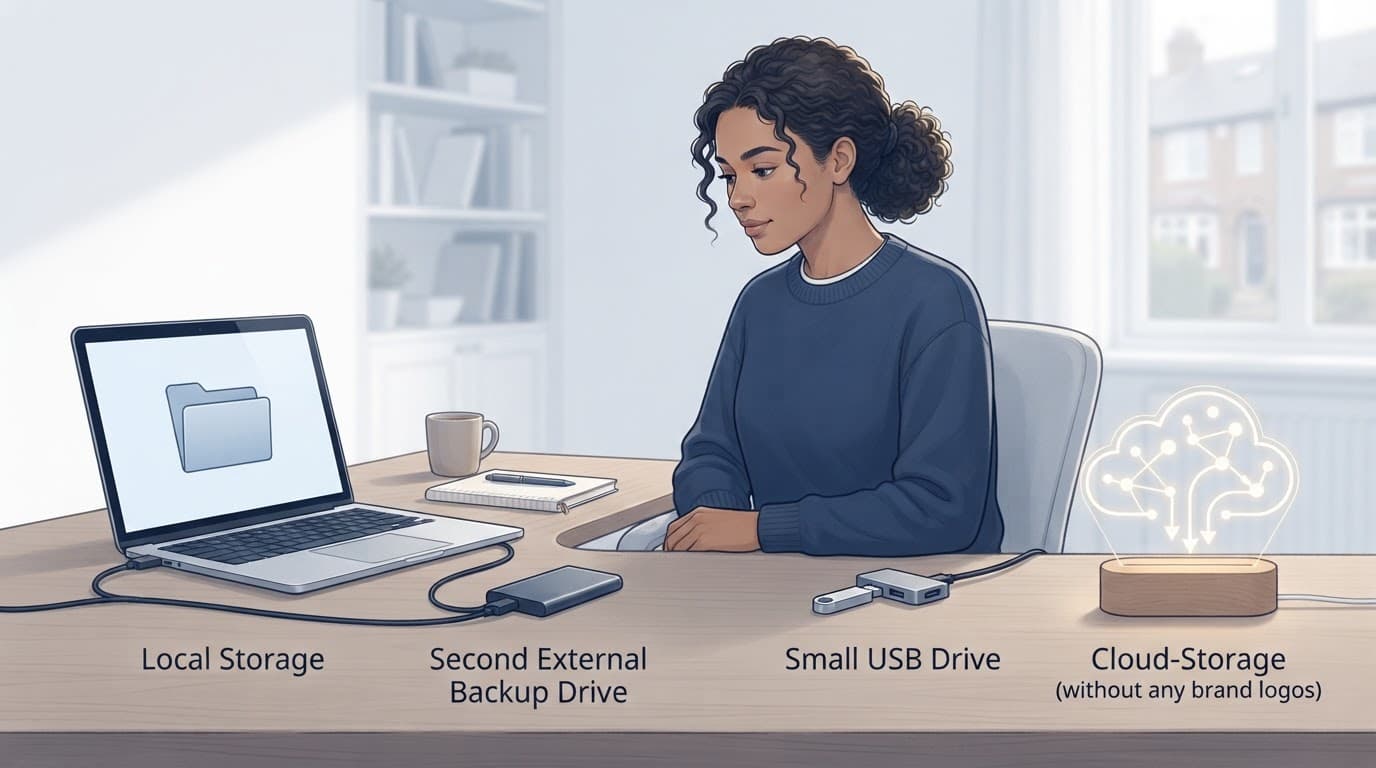
AI-generated image comparing local, USB, cloud and separate backup storage.
A Practical OneDrive Checklist Before Storing Important Files
Before moving important documents or photographs, check the following:
- Use a unique Microsoft account password and activate two-factor authentication.
- Confirm your cloud storage allowance covers current files and expected growth.
- Review folder permissions before sharing, especially edit access.
- Mark essential files for offline use when internet access may be unreliable.
- Test version history and the recycle bin before depending on them for recovery.
- Check account recovery details, including a current phone number or backup email.
- Sync only the folders required on each device.
- Keep a second backup on a separate external drive or suitable storage service.
These checks suit a new setup and an existing account review. Microsoft 365 is particularly convenient for people using Word, Excel and Outlook.com, whilst Google Drive may fit better with different devices, collaboration systems or privacy requirements.
Frequently Asked Questions
The main features are straightforward, but account types, permissions and storage limits can still cause confusion. These answers cover practical questions that often arise after setting up Microsoft OneDrive.

AI-generated image showing OneDrive files being reviewed across connected devices.
Can OneDrive be used without a Microsoft 365 subscription?
Yes. A free Microsoft account gives you access through a browser, mobile apps and the desktop app. The free allowance is limited, so it may suit documents and a modest photograph collection.
A Microsoft 365 subscription can add storage and Office applications, depending on the plan. It is more useful when you regularly need Word, Excel or PowerPoint, rather than storage alone.
Can someone without a Microsoft account open a OneDrive link?
Some sharing links can be opened by anyone who receives them, depending on the permission selected by the account holder. However, editing links or access to sensitive material can create wider security risks.
A Microsoft account used for Outlook.com may also work with the service, but recipients might still need to sign in. For private documents, sharing with named people is safer than using a general link.
Can two Microsoft accounts use OneDrive on the same computer?
Yes, but personal and work or university accounts should remain clearly separated. Each account can have its own folder, although similar names and overlapping files can cause mistakes.
Check which profile is active before moving, deleting or sharing a file. This separation also prevents confusion when employment or university access ends.
Is OneDrive suitable for storing confidential documents?
It can store sensitive files, but protection depends on account security and sharing settings. A unique password, multi-factor authentication and a screen lock reduce the chance of unauthorised access.
Confidential documents should use restricted permissions, rather than links that anyone can open. Organisations may also require approved business storage with specific retention and access controls.
Why is a OneDrive file visible online but missing from a computer?
The file may be online-only because Files On-Demand is enabled. The folder may also be excluded from synchronisation on that device.
Check the folder settings and status icon to identify the problem. If the file is needed without internet access, mark it for offline use.
Does cloud storage replace an external backup drive?
No. Cloud storage provides syncing and recovery tools, but a deletion or damaged file can synchronise across devices. An external drive kept separately provides another copy if the account or cloud files are compromised.
Conclusion
OneDrive is most useful when cross-device access, Microsoft 365 integration and straightforward file sharing matter. Its Microsoft 365 integration keeps documents, photographs and shared work available across computers and mobile devices. Version history and the recycle bin provide useful protection against accidental changes or deletions.
OneDrive still has practical limits. Storage quotas, subscription costs, internet access and account permissions affect how well it suits a household, student or small business. Good folder management, strong account security and a separate backup remain important for irreplaceable or confidential files.
Used with these safeguards, OneDrive is practical cloud storage rather than a complete backup system. OneDrive can simplify everyday file management, much like local folders and external drives. Its value still depends on managing files, access and recovery carefully.
Explore More Buyers Guides & Reviews
For a list of our main buyers guides use the drop-down menu at the top of the page. Topics related to this article are:
Kitchen Appliances Buyers Guides
–
Explore Our Blog Categories for Expert Buying Advice
- AI Powered Product Finder Tools (25)
- Expert Buying Guides & Shopping Tips for UK Shoppers (1,200)
- Brands & Designer Products (Men, Women & Electronics) (243)
- Designer Fashion Brands: Buyer’s Guides & Reviews (127)
- Electronic Brands: Buyers Guides & Reviews (82)
- Apple Products Buyer’s Guides & Reviews (23)
- Brands – Phones, Laptops, PC”s, Tablets | Buyer’s Guides & Reviews (41)
- Electronics – Tablet & iPad Reviews and Buyers Guides (11)
- Kitchen Appliance Brands: Buyer’s Guides & Reviews (21)
- Laptop Brands & MacBooks Buyer’s Guides & Reviews (9)
- Phone Brands & iPhones Buyer’s Guides & Reviews (22)
- Car Buying & Financing Made Easy | Expert Guides for the UK (88)
- Clothing, Fashion & Accessories Buying Guides UK (345)
- Beauty, Health & Wellness | Perfume, Skincare, Makeup & Wellbeing Guides (126)
- Footwear: Trainers & Shoes Buyers Guides (45)
- Jewellery: Expert Reviews, Trends & Buying Guides (60)
- Men's Clothes — Buyers Guides & Reviews (37)
- Men’s Clothes, Fashion & Accessories Guides UK | Latest Trends & Smart Shopping (136)
- Women's Clothing Buyers Guides — Dresses, Tops & More (119)
- Women’s Clothes, Fashion & Accessories Guides UK | Latest Trends & Smart Shopping (295)
- Electronics, Tech & Gadgets: Reviews, Deals & Buying Guides UK (166)
- Furniture Buyer’s Guides | Home & Garden & Styling Tips (279)
- Bedroom Furniture Guides UK | Expert Tips & Best Value Deals (91)
- Garden Furniture, Landscaping & Garden Rooms Guides UK | Expert Tips & Best Value Deals (131)
- Garden Sofa & Sofa Sets Buyers Guides (10)
- Garden Tables & Chairs: Sets, Individual Tables & Seating Buyers Guides (18)
- Home Furniture, Décor & Interior Design Guides UK | Styling Tips & Inspiration (159)
- Living Room Furniture, Design & Décor Guides UK | Styling Tips & Inspiration (56)
- Sofa & Sofa Beds Buyers Guides (17)
- Sofa Beds Buyers Guides (7)
- Sofa Buyers Guides & Expert Advice (10)
- Holidays & Travel: Hotels, Villas & Flights (153)
- Home & Garden Improvements | Renovations & Outdoor Transformation Guides (93)
- Insurance & Protection: Travel, Landlord, Gadget & More UK (157)
- Gadget Insurance UK | Expert Guides, Reviews & Smart Protection Tips (32)
- Home Emergency Cover UK | Expert Guides, Reviews & Practical Protection Tips (21)
- Landlords Insurance UK | Expert Guides, Reviews & Smart Protection Tips (31)
- Travel Insurance UK | Expert Guides, Reviews & Money-Saving Tips (34)
- Pets: Guides, Tips & Inspiration (25)
- Brands & Designer Products (Men, Women & Electronics) (243)
- Gifts for Everyone: Ideas for Every Occasion & Budget (37)