Buying a large tablet can feel like choosing between two lives. In one, you’re scribbling neat lecture notes, marking up PDFs, and answering emails on the train. In the other, you’re back on your laptop because the apps you rely on aren’t playing nicely.
The HUAWEI MatePad Pro 12.2-inch sits in the premium, big-screen tablet space. It’s built for people who want more room than an 11-inch screen gives, without carrying a full laptop. This guide focuses on what UK shoppers usually care about: the screen, battery, keyboard and stylus options, day-to-day performance, and the app experience.
If you’re a student, a creative, or you work remotely, the main question is simple: will this tablet fit your routine, or will it fight it?
HUAWEI MatePad Pro 12.2-inch at a glance: what you get and who it is for
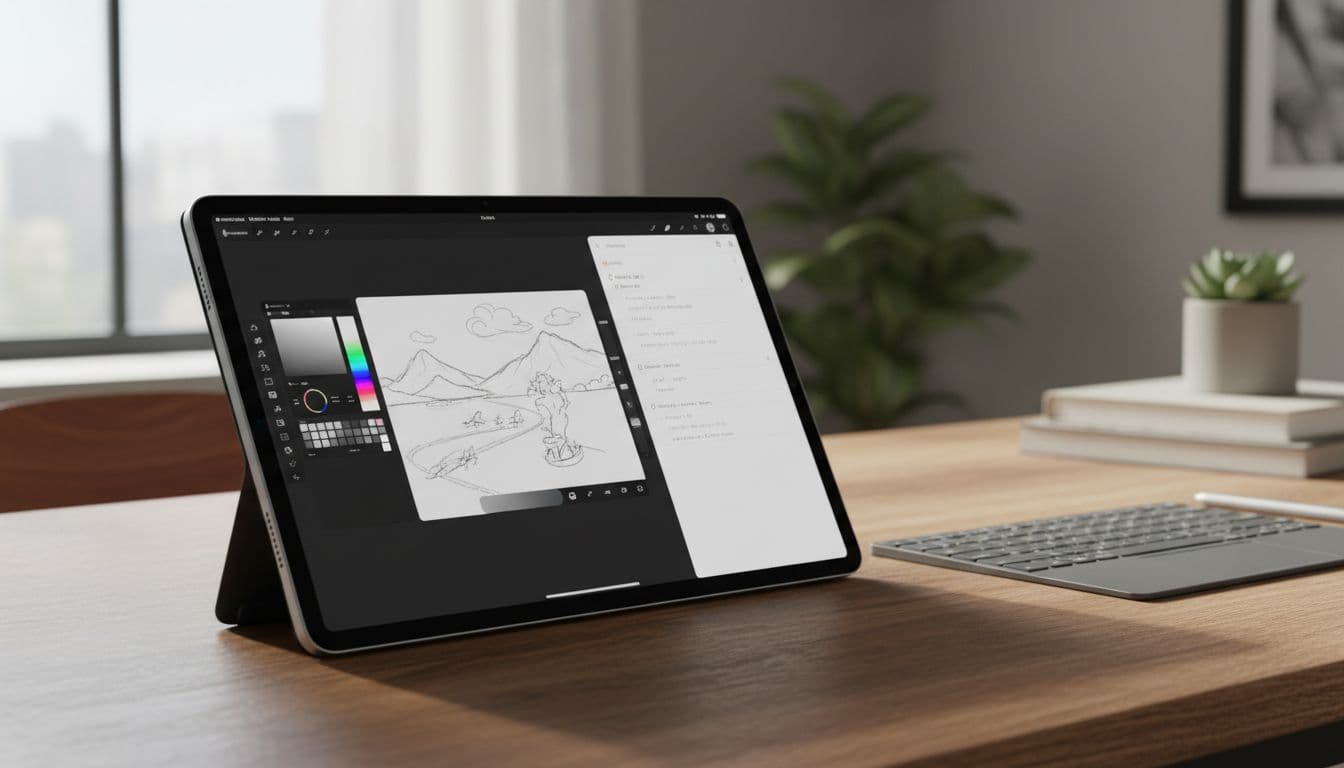 The MatePad Pro style of setup many buyers aim for, a large screen with keyboard and stylus ready for work, created with AI.
The MatePad Pro 12.2-inch is aimed at people who want a large, premium tablet for productivity and creative tasks. The big win is obvious: a spacious screen that makes reading, writing, and split-screen work feel less cramped. Add a keyboard cover and stylus, and it starts to behave like a lightweight work machine.
The likely trade-offs are also clear. First, you need to be comfortable with Huawei’s software approach and how you’ll get the apps you need in the UK. Second, the “laptop replacement” promise depends heavily on accessories and workflow. If you spend all day in one or two web tools and a handful of common apps, you may be fine. If your day relies on niche apps, strict workplace device rules, or Google-only services, you need to check carefully.
This is the kind of tablet that handles:
- Note-taking, PDF markup, and revision
- Drawing and casual design work
- Video calls and online classes
- Email, documents, and web research
- Streaming, reading, and browsing with room to spare
Best for note-taking, drawing, and big-screen reading
A 12.2-inch display is like having an A4 notebook that never runs out of pages. It’s easier to read full-size PDFs without constant zooming, and it’s much more comfortable for split-screen work. For students, that often means lecture slides on one side and handwritten notes on the other. For remote work, it can mean email alongside a document, or a meeting chat next to your agenda.
This is where stylus and keyboard add-ons can change everything. A good stylus turns the tablet into a digital notepad, and it can feel closer to pen and paper than typing ever will. A keyboard cover makes longer writing sessions realistic, especially if it has a trackpad and a stable hinge.
If you’re buying this tablet mainly for handwriting, drawing, or reading, the large screen is the point. If you’re buying it mainly to type all day, treat the keyboard quality as part of the product, not an optional extra.
Not for everyone: check your must-have apps and services first
For some UK users, the decision comes down to apps, not hardware. If you expect a tablet to work exactly like an Android device with Google services, you’ll want to slow down and confirm what you can and can’t do in your normal routine.
A practical approach is to write a short “can’t live without it” list before you buy. Include things like:
- Banking and card apps
- Workplace tools (auth apps, chat, VPN, document signing)
- Streaming services you actually use
- School or university platforms
- Kids’ apps and parental controls, if relevant
Then check each one for availability, sign-in method, and whether key features work (notifications, casting, widgets, and payments). If even one essential app is missing, this may not be the right tablet for you.
Design, display, and audio: does the 12.2-inch screen feel worth it?
A 12.2-inch tablet sits in a sweet spot for many people, big enough to feel roomy, still slim enough to carry daily. In a backpack, it’s closer to a thin laptop than a small tablet. In your hands, it’s best thought of as a “two-hand” device for longer sessions, especially if you’re reading on the sofa.
The real test is how it fits your day. If you commute, you’ll notice the size on crowded trains. If you mostly work at a desk, it feels generous and comfortable. A case and stand matter more with a large tablet too, because propping it up is often nicer than holding it.
Display quality for films, web browsing, and creative work
When you’re judging a premium tablet display, a spec sheet only tells part of the story. In real use, you’re looking for a few simple things:
- Sharp text: web pages and ebooks should look crisp at normal reading distance.
- Good colour: photos and videos should look natural, not overly cold or cartoonish.
- Enough brightness: you should see the screen clearly near a window or outdoors on a bright day.
- Smooth scrolling: pages should glide without stutter when you flick through content.
If you can see the tablet in person, use a few quick checks:
- Open a plain white page and look for uneven patches (it should look consistent).
- Tilt the screen and check viewing angles, colours should stay steady.
- Try a dark scene in a video and see if shadow detail holds up.
- Read a long article for two minutes, your eyes will tell you more than any number will.
For creative work, consistency matters. A display that looks even across the whole panel is easier for drawing and photo edits, and it’s less tiring during long note sessions.
Speakers, microphones, and cameras for calls and online classes
Large tablets often make great call devices because there’s room for better speaker placement, and you can set them further away without squinting. For video calls, what you want is simple: voices that sound clear, and a microphone that doesn’t make you seem distant.
A few practical points that make a bigger difference than people expect:
- Put the tablet on a stand for a better camera angle, nobody wants the “up the nose” view.
- If you take calls in noisy places (shared flats, cafés), test background noise handling early.
- For online classes, speaker clarity matters more than loudness, especially for lectures and accents.
Front camera framing also matters on a 12.2-inch device. If the camera sits on a side edge, it can feel natural in landscape for calls. If you often call in portrait, you may need to adjust how you hold it. A stand turns this from an issue into a non-issue.
Performance and battery life: how it handles everyday tasks
For most buyers, “performance” means one thing: does it feel quick? On a premium tablet, you expect apps to open fast, switching tasks to be smooth, and typing to keep up with you.
In day-to-day use, what can slow a tablet down is heavy multitasking, large files (big PDFs, big art layers), and lots of apps running at once. A large screen invites you to do more at once, so it’s worth thinking about how you work, not just what you watch.
Multitasking on a large tablet: split screen, floating windows, and productivity
The big screen shines when you treat it like a work surface, not a giant phone. Common, realistic workflows include:
- Email open next to a document you’re editing
- Browser research beside a notes app
- Video call in one window with chat or a to-do list visible
If you plan to do this often, storage and memory matter more than they do on a small tablet. You don’t need to obsess over variants, but you should buy with your habits in mind. If you keep many apps open, work with large files, or store lots of offline content, more headroom makes life easier.
Also consider how you’ll move files. If you swap documents between a laptop and tablet, check ports and accessories you might need (USB storage, card readers, or hubs). It’s not exciting, but it’s the sort of thing that decides whether the tablet feels simple or fiddly.
Battery and charging: what to expect in a normal week
Battery life depends on what you do and how bright you run the screen. A large display can use more power, and video streaming and video calls are usually the quickest drain.
Think in weekly patterns, not perfect lab numbers:
- Commuting and lectures: notes, PDFs, and web browsing tend to be gentle on battery.
- Sofa streaming: video at higher brightness uses more power, especially over longer sessions.
- Travel days: hotspot use, downloads, and constant multitasking can drop battery faster.
A few easy battery habits can help without making you feel like you’re babysitting the device:
- Use auto brightness, then nudge it up only when needed.
- Close apps you’re not using, especially if they run in the background.
- When you can, use Wi‑Fi rather than a mobile hotspot.
- Download playlists or shows ahead of time, streaming burns more power.
Charging speed and charger choice also matter in real life. If you want the tablet to be a daily work tool, having a charger in your bag can save a lot of stress.
Software and apps: the biggest thing to understand before you buy
This is the make-or-break section. Hardware gets you interested, software decides whether you keep it.
The MatePad Pro runs Huawei’s software experience and uses Huawei’s approach to app downloads. If you’re used to an iPad, you may notice differences in how apps are curated and how accessories integrate. If you’re used to Android with Google services built in, you’ll need to adjust expectations around certain Google apps and services.
None of this is automatically good or bad. It’s about fit. Some people use web apps for most things and won’t care. Others rely on specific services daily and will feel every missing piece.
Getting apps you actually use in the UK
Before paying, check your essential apps in a way that mirrors your real use. Don’t just confirm the app exists, confirm it does what you need.
Look for:
- Payments and sign-in: does it support the login method you use (biometrics, passkeys, two-factor)?
- Notifications: do alerts arrive on time for banking, delivery, or work chat?
- Casting and sharing: if you cast to a TV or share to other devices, test that workflow.
- Widgets and background behaviour: small features can matter for habit-based apps (calendars, task lists).
If you can borrow a Huawei device for an hour, that’s the best test. If not, read recent user feedback in official listings and pay attention to repeated issues. UK banking apps, in particular, can be strict about security and device support, so verify early.
Work and study compatibility: files, cloud storage, and video meetings
For work and study, compatibility is less about “can it open a file?” and more about “can I finish the job without friction?”
Check these areas:
- Microsoft Office formats: opening is common, but your workflow might need advanced features, track changes, or templates.
- PDFs: if you annotate, sign, and export, test the full loop.
- Email and calendars: confirm your account type and how you manage shared calendars.
- Video meetings: make sure your usual platform works well, including screen sharing if you need it.
If your employer or university uses device management (MDM), required security apps, or a specific sign-in method, ask before you buy. IT rules can block access even if the hardware is capable.
Buying advice: specs to compare, accessories, and smart ways to save money
With premium tablets, the headline price rarely tells the full story. The “real” cost is the tablet plus the accessories that make it useful for your routine.
Start by deciding which mode you’ll use most:
- Tablet-first (reading, notes, casual browsing)
- Laptop-style (typing, admin, email, documents)
- Creative pad (drawing, handwriting, design)
Then buy the specs and add-ons to match that mode.
What to look for in the spec list (and what you can ignore)
Focus on what you’ll feel every day:
- Display quality: the screen is what you’re paying to stare at.
- Battery and charging: a big screen is less fun if you’re always hunting sockets.
- Storage: you’ll want more if you keep offline videos, large PDFs, or art files.
- Wi‑Fi performance: stable Wi‑Fi matters for calls, cloud docs, and streaming.
- Ports: consider how you connect drives, monitors, or headphones.
What you can often ignore is the marketing fluff around performance claims. If your use is notes, browsing, streaming, and documents, the bigger risks are app support and accessory quality, not raw speed.
Keyboard, stylus, and cases: turning it into a laptop alternative
If you want the MatePad Pro to replace a laptop some of the time, accessories aren’t optional. They decide comfort, speed, and how often you reach for your old device.
When you’re checking accessories, look for:
- Keyboard feel: enough key travel for long typing, not cramped layout.
- Trackpad quality: smooth pointer control, reliable clicks, and sensible gestures.
- Lap stability: some keyboard covers wobble on your knees, test if you commute.
- Stylus comfort: weight and grip matter for long note sessions.
- Palm rejection: your hand should rest naturally while writing.
- Spare nibs: you’ll wear tips over time, so check availability and cost.
- Corner protection: drops often hit corners first, a good case helps.
Factor accessory cost into your budget from the start. A “cheap” tablet can become expensive once you add the keyboard, stylus, and a protective case you actually trust.
Conclusion
The HUAWEI MatePad Pro 12.2-inch makes sense for UK buyers who want a premium, big-screen tablet for notes, reading, drawing, and light productivity, and who are happy with Huawei’s approach to apps. If your day depends on Google-first services, strict workplace requirements, or a narrow set of must-have apps, you may be better served by a platform you already know will support them. Before you pay, do three checks: confirm your essential apps, price up the accessories you’ll really use, and be honest about how often you’ll use the big screen away from a desk. Compare the total cost and your real needs, then buy with confidence.
Explore More Buyers Guides and Reviews
For a list of our main buyers guides use the drop-down menu at the top of the page. Topics related to this article are:
Kitchen Appliances Buyers Guides
–
Explore Our Blog Categories for Expert Buying Advice
- AI Powered Product Finder Tools (25)
- Expert Buying Guides & Shopping Tips for UK Shoppers (1,431)
- Brands & Designer Products (Men, Women & Electronics) (285)
- Designer Fashion Brands: Buyer’s Guides & Reviews (163)
- Electronic Brands: Buyers Guides & Reviews (88)
- Apple Products Buyer’s Guides & Reviews (25)
- Brands – Phones, Laptops, PC”s, Tablets | Buyer’s Guides & Reviews (42)
- Electronics – Tablet & iPad Reviews and Buyers Guides (11)
- Kitchen Appliance Brands: Buyer’s Guides & Reviews (22)
- Laptop Brands & MacBooks Buyer’s Guides & Reviews (9)
- Phone Brands & iPhones Buyer’s Guides & Reviews (23)
- Car Buying & Financing Made Easy | Expert Guides for the UK (89)
- Clothing, Fashion & Accessories Buying Guides UK (496)
- Beauty, Health & Wellness | Perfume, Skincare, Makeup & Wellbeing Guides (183)
- Footwear: Trainers & Shoes Buyers Guides (49)
- Jewellery: Expert Reviews, Trends & Buying Guides (73)
- Men's Clothes — Buyers Guides & Reviews (39)
- Men’s Clothes, Fashion & Accessories Guides UK | Latest Trends & Smart Shopping (167)
- Women's Clothing Buyers Guides — Dresses, Tops & More (194)
- Women’s Clothes, Fashion & Accessories Guides UK | Latest Trends & Smart Shopping (435)
- Electronics, Tech & Gadgets: Reviews, Deals & Buying Guides UK (173)
- Furniture Buyer’s Guides | Home & Garden & Styling Tips (326)
- Bedroom Furniture Guides UK | Expert Tips & Best Value Deals (93)
- Garden Furniture, Landscaping & Garden Rooms Guides UK | Expert Tips & Best Value Deals (169)
- Garden Sofa & Sofa Sets Buyers Guides (11)
- Garden Tables & Chairs: Sets, Individual Tables & Seating Buyers Guides (53)
- Home Furniture, Décor & Interior Design Guides UK | Styling Tips & Inspiration (169)
- Living Room Furniture, Design & Décor Guides UK | Styling Tips & Inspiration (57)
- Sofa & Sofa Beds Buyers Guides (19)
- Sofa Beds Buyers Guides (7)
- Sofa Buyers Guides & Expert Advice (11)
- Holidays & Travel: Hotels, Villas & Flights (161)
- Home & Garden Improvements | Renovations & Outdoor Transformation Guides (102)
- Insurance & Protection: Travel, Landlord, Gadget & More UK (159)
- Gadget Insurance UK | Expert Guides, Reviews & Smart Protection Tips (33)
- Home Emergency Cover UK | Expert Guides, Reviews & Practical Protection Tips (21)
- Landlords Insurance UK | Expert Guides, Reviews & Smart Protection Tips (31)
- Travel Insurance UK | Expert Guides, Reviews & Money-Saving Tips (34)
- Pets: Guides, Tips & Inspiration (26)
- Brands & Designer Products (Men, Women & Electronics) (285)
- Gifts for Everyone: Ideas for Every Occasion & Budget (49)